Creating your first data Pipeline in Oracle EPM Account Reconciliation

In this article, we will learn how to create a Data Pipeline in Account Reconciliation to set the period status. We will be using the “Set Period Status” job type.
Creating your Pipeline
Navigate to Application > Data Exchange
Press enter or click to view image in full size

Once you are in the Data Exchange page, click on Create New > Pipeline

Give the Pipeline Name and Pipeline Code
Pipeline Name : Set Period Status
Pipeline Code : SETPERIOD
Click on Save and Continue
Press enter or click to view image in full size

Let’s go ahead and define a variabe to provide the Period Name as a dynamic value.
Variable Name: periodName
Display Name: Period Name
Display Sequence: 1
Required: Yes
Validation Type: Text
Make sure to delete any default variables that you are not planning to use.

Let’s create a new stage. Provide the Stage Name and State Title as shown in the screenshot.
Press enter or click to view image in full size

Once you create the stage, go ahead and create a new job in the Stage. Provide the following information.
Type: Set Preiod Status
Tile: Open Period
Period: $periodName (this is the ariable defined earlier)
Status: Open
We can also create another variable to provide the status dynamically. I will show that in the YouTube Video.
Press enter or click to view image in full size

Click on the Save button to save the Pipeline definition.
Before executing the pipeline, lets review the status of the periods. As you can see “Jan 2025” is in Pending Status.
Press enter or click to view image in full size

Navigate to Data Exchange and Click on the “Play / Run” icon to execute the Pipeline
Press enter or click to view image in full size

In the next screen, provide values to parameters. We will be setting the status of “Jan 2025” to Open. Pass the value “Jan 2025” to the Period Name variable.
Press enter or click to view image in full size

Click on “Run” button to execute the Pipeline.
After a few seconds, you will notice the status of the Pipeline show as Success.

Let;s go ahead and check the Period Status. Navigate to “Application > Periods”
Press enter or click to view image in full size
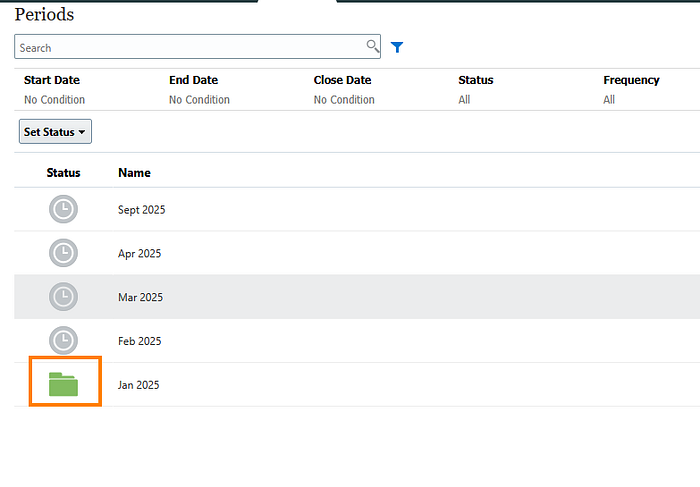
The period status has been set correctly. You can now invoke this Pipeline from EPM Automate or using REST APIs to automate this.
If you configured the Pipeline to receive emails, you will receive an email with the details of the pipeline execution.
Press enter or click to view image in full size

What’s Next
In the next article and video, I will show you how to invoke this Pipeline from Planning application. This is useful so that you can schedule the Pipeline in Planning so that this runs on a schedule. I will also cover how to invoke the pipeline from epm automate and using REST APIs.
Let me know if you have any questions on this. Make sure to subscribe to the articles and my YouTube Channel for updated content.


